
The app works straight away in your phone's browser — good for a first look.
Puts a dove icon on your home screen. It then opens like any other app and works without internet.
Install the app, not this website. First open the app with the gold button below — its address is app.deuminvenire.org — and do the steps there.
Your phone looks like: —. Not right? Tap the other one.
- 1
Open the app in Chrome
Tap the button. The app opens in Chrome. Check the address at the top says app.deuminvenire.org.
Open Deum invenire ↗ - 2
Tap ⋮, then “Install and create shortcut”
Tap the three dots ⋮ at the top right. Choose Install and create shortcut (on some phones it says Install app or Add to Home screen).
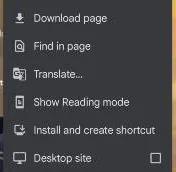
You will see this - 3
Choose “Install”, then “Install” again
Pick Install — not “Create shortcut”. Chrome then asks once more: tap Install.
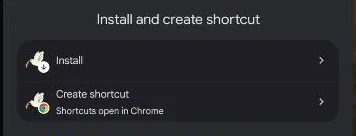
You will see this 📷 Photo to come: Chrome's “Install app” box for app.deuminvenire.org - 4
Find the dove on your home screen
After a few seconds the blue dove icon Deum invenire appears on your home screen or in your app list. No need to tap twice.

You will see this - 5
Open it and allow your location
Open Deum invenire from the icon. Tap Use my location and then Allow — or simply choose your country and town instead.
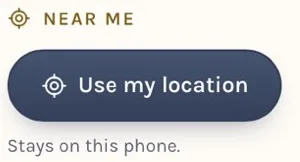
You will see this
- 1
Open the app in Safari
Tap the button. On iPhone use Safari (the blue compass). Check the address at the bottom says app.deuminvenire.org.
Open Deum invenire ↗ - 2
Tap the Share button
Tap Share — the square with an arrow pointing up — in the bar at the bottom (on iPad: top right).

You will see this - 3
Tap “Add to Home Screen”
Scroll down the list a little and tap Add to Home Screen.
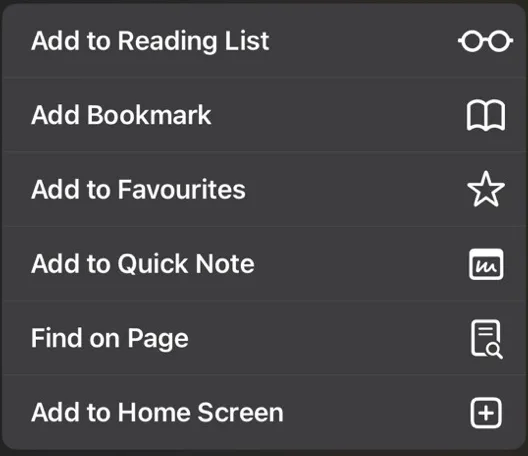
You will see this - 4
Tap “Add”
Keep the name Deum invenire. If you see Open as Web App, leave it switched on. Then tap Add at the top right.

You will see this 📷 Photo to come: the full “Add to Home Screen” screen for app.deuminvenire.org - 5
Open it from the dove — and allow your location
The blue dove appears on your home screen. Open it there, tap Use my location and Allow While Using App — or choose your country and town instead.

You will see this
iPhone: the app can't find your location?
Sometimes an iPhone does not give its location to apps added to the Home Screen. The app then shows an error or keeps waiting. There is a simple way round it — Safari finds the location for you:
- In the app, tap the place at the top (Change ›) to open Where?
- Tap Other ways (coordinates, Safari), then Get my location in Safari.
- Safari opens and asks for your location: tap Allow. It shows your coordinates — tap Copy.
- Go back to the Deum invenire app. Tap the box or type coordinates, paste, and tap Set.
Or let Safari share your location with the app for good: Settings → Privacy & Security → Location Services → Safari Websites → While Using the App. Prefer not to share it at all? Choose your country and town in Where? instead.
Location refused by mistake?
Android (Chrome): ⋮ → Settings → Site settings → Location → app.deuminvenire.org → Allow.
iPhone: Settings → Privacy & Security → Location Services → Safari Websites → While Using the App.
You can always choose your country and town by hand instead.
The icon is there — how do I open the app now?
Always open Deum invenire from the dove on your home screen, not from the browser. It updates itself; there is nothing else to install.
Why a web app — and what comes next
When the store apps arrive, this page will show their buttons first. Your Favorites will be able to move over — we will show you how.